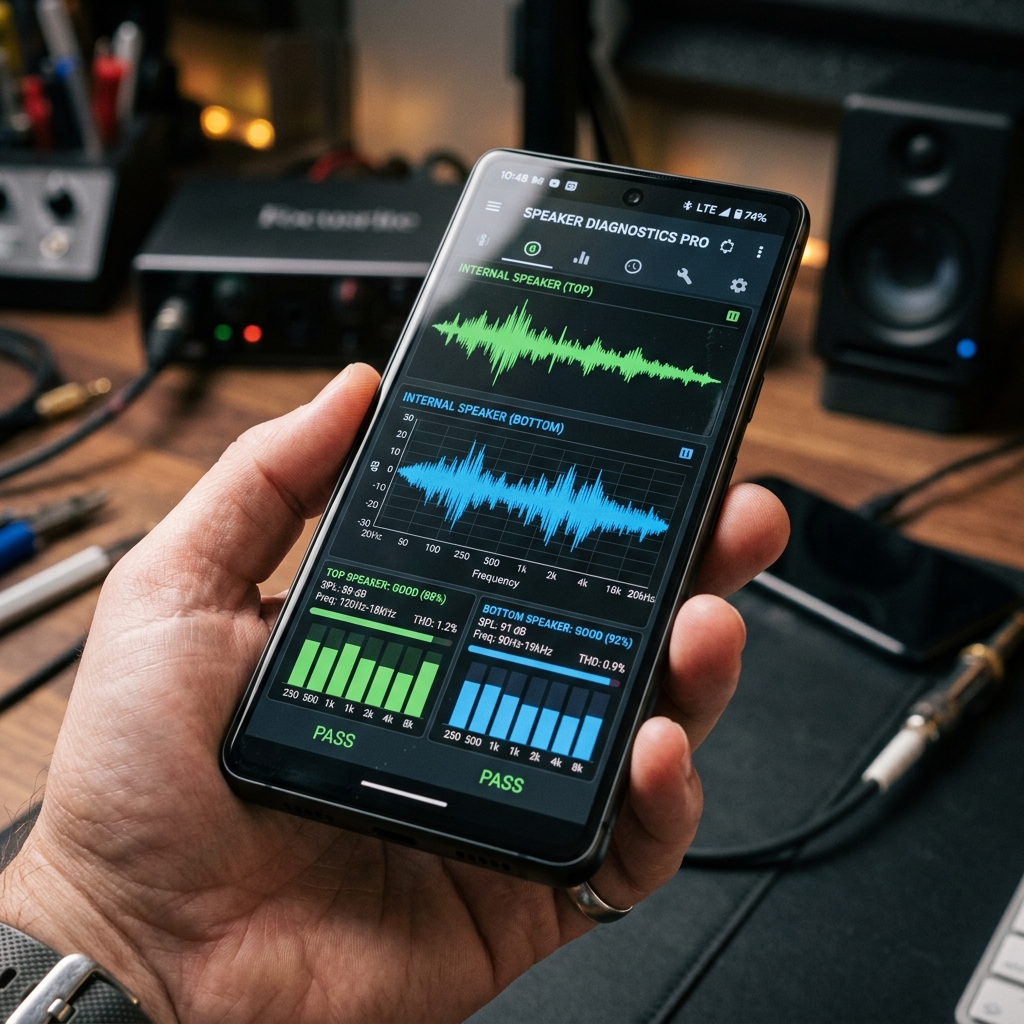
When your phone suddenly sounds wrong, the first question isn't "how do I fix it?" — it's "what is actually wrong?" A speaker that's muffled because of lint in the grille needs a completely different fix from one with a torn cone or one that's simply routing audio to a Bluetooth device in another room. A few minutes of structured testing tells you which case you're in, so you don't waste time (or money) on the wrong fix.
This guide walks through the same order of checks we use: rule out settings first, then test each speaker channel, then sweep through the frequency range, then listen to real content. At the end you'll know whether you're dealing with a blockage (usually fixable at home), a software or routing problem, or hardware damage that needs a repair shop.
Before you test: rule out the easy stuff
A surprising number of "broken speaker" reports turn out to be settings. Spend 30 seconds here before running any test sound:
- Volume and the right volume slider. Phones keep separate levels for media, ringtone and calls. Press the volume button while audio is playing so you raise the media volume, not the ringer.
- Silent mode and Do Not Disturb. Turn off the silent/ring switch or Action Button mode on iPhone, and check sound mode on Android. Some browsers and apps stay quiet in silent mode even when media volume is up.
- Bluetooth and audio routing. Disconnect earbuds, car kits and smart speakers, or switch Bluetooth off for the test. On iPhone, check the AirPlay/output picker in Control Center; on Android, check the media output panel.
- Case and screen protector. Make sure nothing is covering the speaker or earpiece openings.
- Restart. A reboot clears stuck audio sessions and apps that have grabbed the audio output.
If sound comes back after one of these, your speaker is fine — it was a software or routing issue.
Test 1: Left/right (stereo) speaker test
Many modern phones have two loudspeakers: one at the bottom edge and the earpiece at the top, which doubles as the second stereo channel. If one of them is blocked or failing, the phone can sound thin or "one-sided" without you noticing which part is at fault. Some models — especially budget phones — only have a single loudspeaker, so check your model's specs before assuming one side is broken.
There are two easy ways to test each side separately:
- Play a left/right test track. Search for a "left right speaker test" audio clip, hold the phone in landscape, and listen for the voice switching sides. Remember that the channels follow the phone's orientation.
- Use the balance slider. On iPhone: Settings → Accessibility → Audio & Visual → Balance. On Android the setting is usually under Settings → Accessibility → Audio adjustment (names vary by manufacturer). Play music, slide the balance fully to one side, then the other.
Put your ear close to each opening in turn. If one side is clearly quieter or duller than the other, that speaker's grille is the first suspect. If one side is completely silent while the other is fine, it's either heavily blocked or the speaker itself has failed. Don't forget to put the balance slider back in the middle afterwards.
Test 2: Frequency sweep from low to high
A sweep is a single tone that glides smoothly from deep bass to very high pitch. It's the quickest way to find rattles, buzzes and "dead" ranges, because it isolates one frequency at a time instead of mixing them like music does. Search for a "frequency sweep 20 Hz to 20 kHz" audio file or use any tone-generator app.
- Start at moderate volume (around half), then repeat at higher volume. Some faults only appear when the cone moves a lot.
- Listen for rattles or buzzing at specific points in the sweep. A rattle that appears at one pitch and disappears at the next often means something loose — a droplet or debris on the mesh, or a damaged driver.
- Listen for sudden drop-outs in the middle of the range, where voices and most music live. A gradual fade is normal; a hole in the middle is not.
Know what's normal, too. Phone speakers are tiny, so the deepest bass is barely audible on every phone — that's physics, not a fault. At the top end, the tone will eventually fade out for everyone, and the point where it disappears depends as much on your ears (high-frequency hearing declines with age) as on the speaker. Keep high-volume tests short; there's no benefit to running a loud tone for minutes.
Test 3: Listen to real music and voice
Test tones are precise, but your ears are tuned to real content. Play a song you know well and a spoken-word clip such as a podcast. If you can, compare against another phone or a pair of headphones playing the same thing.
Pay particular attention to voices. When consonants like s, t and f sound soft or smeared, the high frequencies are being absorbed before they leave the phone — the classic sign of dust, lint or water sitting in the grille. If speech is crisp but loud passages crackle, that points elsewhere (see the next section).
What your results mean
- Muffled or quieter than usual — most often a blockage: lint, dust or skin oil in the grille, or water on the mesh after a splash. Usually fixable at home. Our guide to why speakers sound muffled explains what builds up in there.
- Crackling or rattling — right after water exposure, this is often droplets vibrating on the mesh and usually fades as the speaker clears. If it persists once the phone is fully dry, debris may be touching the diaphragm or the cone may be damaged.
- Distorted even at low volume — a fuzzy, buzzy sound at every volume level, especially on bass, usually means a damaged ("blown") driver. Cleaning won't fix that.
- Completely silent — check software and routing first (the checks above, a different app, a restart). If one speaker stays silent while the other works, it's likely a failed speaker or a loose connection.
- Problem only in one app — almost certainly software: that app's own volume, permissions or an update.
Test the earpiece (call) speaker
The earpiece is the small slot above the screen you hold to your ear during calls. It gets pressed against skin, so it collects oil, makeup and fine dust faster than the bottom speaker. To test it, call your voicemail or a friend and listen with the phone held normally, then switch to speakerphone. If the speakerphone sounds clear but the earpiece is faint or muffled, the problem is in that top grille. On phones with stereo speakers, the balance test above also exercises the earpiece. If calls are your main problem, our guide on why a phone sounds muffled during calls covers the call-specific causes.
Test the microphone
If people say you sound muffled, the issue may be the microphone, not your speaker. Record a short clip in your phone's voice recorder app and play it back. Most phones have more than one microphone, so also try recording a video with the front camera and then the rear camera, and make a speakerphone call — each can use a different mic. A recording that sounds distant or dull in one test but fine in another points to a blocked microphone port. The ClearWave web tool doesn't use your microphone; this test is done entirely with your phone's own apps.
Built-in test after every ClearWave cleaning
If your tests point to a blockage, run a sound-cleaning cycle with the free ClearWave speaker cleaner right in your browser. When the cycle finishes, ClearWave now plays a short test sound — a few seconds of low, mid and high notes — and asks "How does it sound?"
- Clear now — you're done.
- Still muffled — run another cycle with the speaker pointing down. Stubborn water or dust often needs two or three passes.
For dust that sound alone doesn't shift, follow our step-by-step guide on how to clean your phone speaker safely, then run the test again.
When to get a repair
Cleaning fixes blockages; it can't fix broken hardware. Consider a repair shop or the manufacturer's service if:
- The sound is distorted or buzzy even at low volume.
- Crackling continues after the phone has had a full day to dry and you've run several cleaning cycles.
- One speaker stays completely silent after you've ruled out settings, Bluetooth and software.
- The phone was dropped hard or shows signs of liquid damage or corrosion.
If the phone is under warranty or covered by insurance, check that first — and avoid opening the phone yourself, since that can break the water-resistance seals.
Clean and test your speaker — free
Run ClearWave's free sound-cleaning cycle in your browser and check the result with the built-in test sound, or install Speaker Wizard for haptic-assisted cleaning.